Mountain Duck + GDX Cloud Integration Guide
Quick setup for connecting Mountain Duck to your GDX Cloud S3 storage and accessing files as a mounted drive.
Prerequisites
- GDX Cloud account with S3 enabled
- Access Key ID and Secret Access Key (from GDX Cloud console)
- Mountain Duck application installed
Protect Your Credentials
Keep your GDX Cloud Access Key ID and Secret Access Key secure. Never share them or commit them to version control. These credentials provide full access to your bucket.Step 1: Select Connection Type
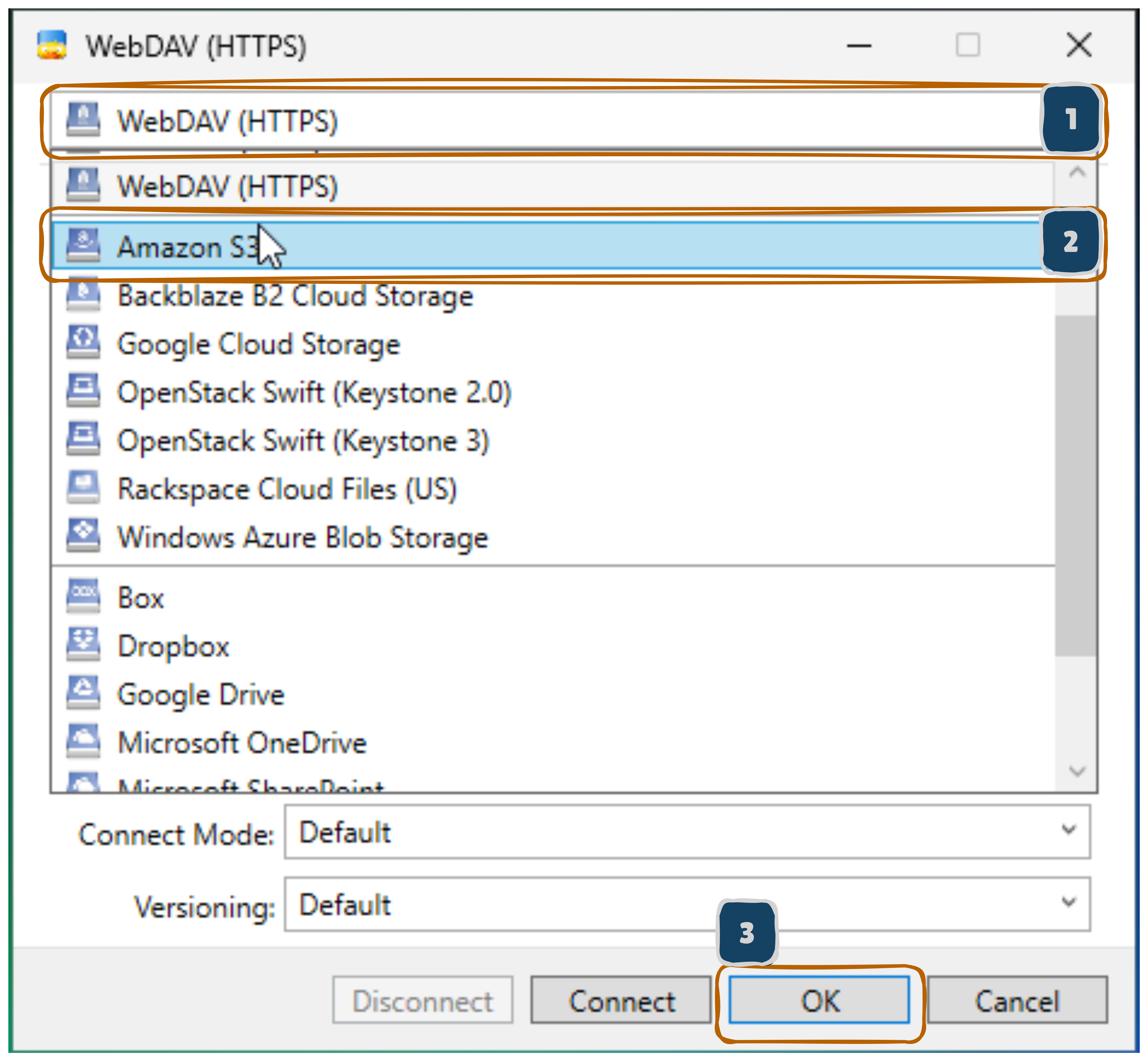
- Open the connection type list
- Find and select Amazon S3 (highlighted in blue)
- This allows S3-compatible connections like GDX Cloud
The list also shows WebDAV and other cloud storage options.
Step 2: Enter GDX Cloud Connection Details
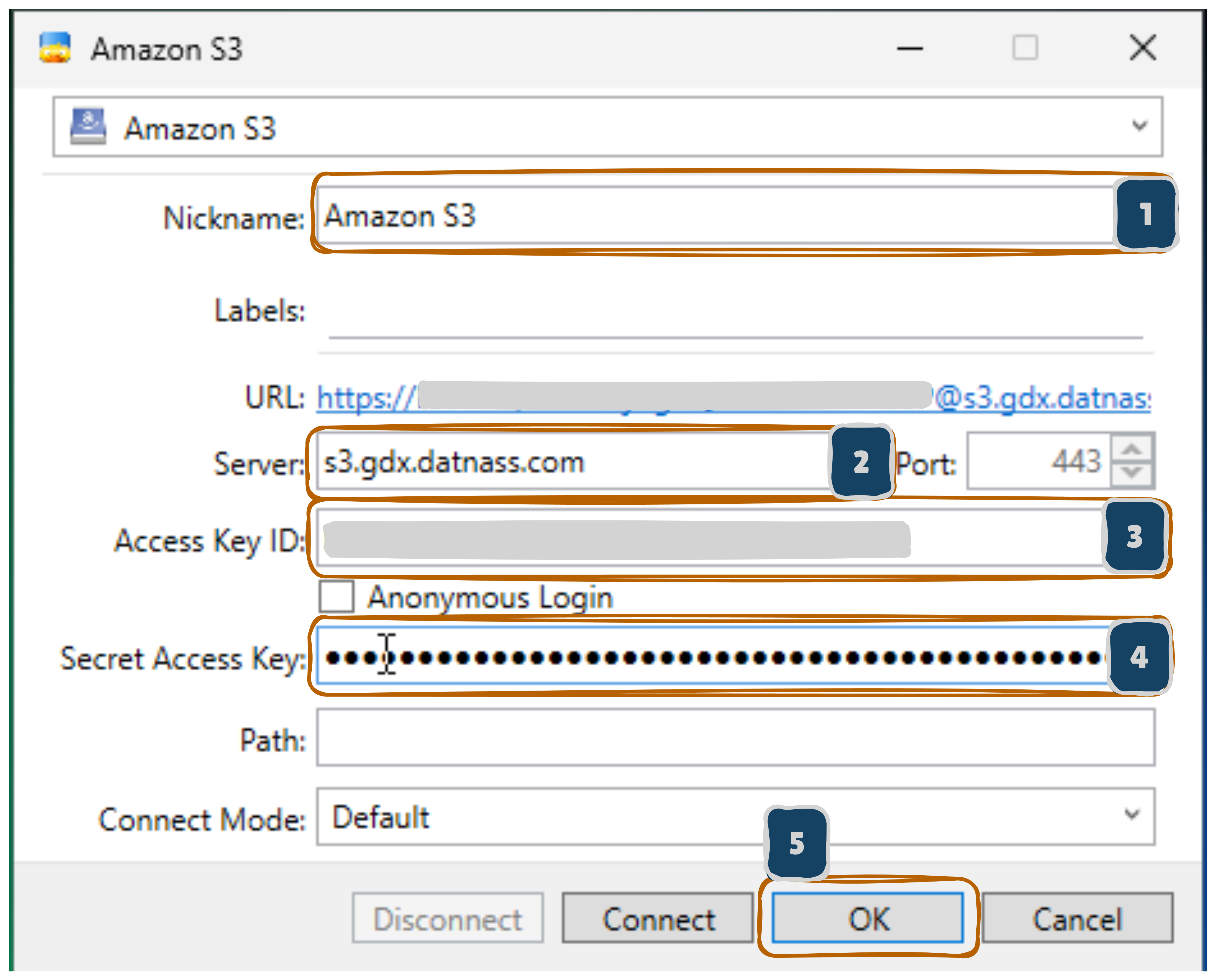
Fill out the Amazon S3 connection form with your GDX Cloud credentials:
- Nickname:
GDX Cloudor (your chosen connection name) - Server:
s3.gdx.datnass.com(GDX Cloud S3 endpoint) - Access Key ID: Your GDX Cloud Access Key ID
- Secret Access Key: Your GDX Cloud Secret Access Key (displayed as dots)
- Connect Mode: Leave as “Default”
Additional fields:
- Labels: Leave empty (optional)
- Port: 443 (for HTTPS)
- Path: Leave empty (to access bucket root)
- URL: Auto-generated from server setting
After filling all fields, click OK to establish the connection.
S3 Configuration Details
Ensure you use the exact endpoint URL and valid credentials from your GDX Cloud console. Use HTTPS (port 443) for secure communication.Step 3: Connection Established - Browse Your GDX Cloud Bucket
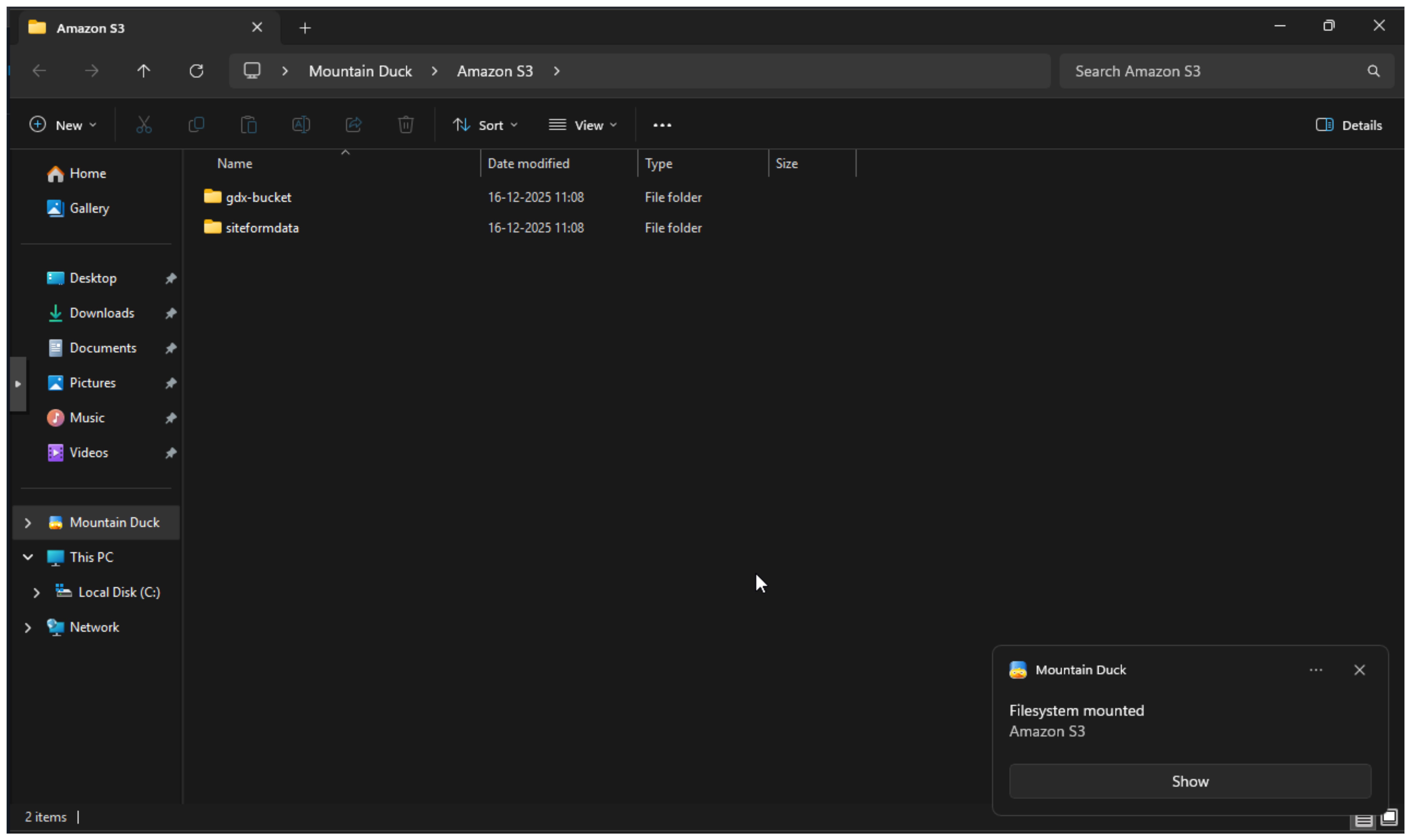
- After clicking OK, Mountain Duck mounts your GDX Cloud bucket
- Your bucket folders appear in the file explorer:
gdx-bucket- Your main bucket foldersiteformdata- Additional folders in your bucket
- A notification shows: “Filesystem mounted - Amazon S3”
- You can now:
- Browse folders
- Upload/download files
- Create new folders
- Manage files like a local drive
The breadcrumb shows: Mountain Duck > Amazon S3 > (your bucket contents)
Left sidebar shows “Mountain Duck” connection as an available drive.
Mounted Drive Access
Once mounted, your GDX Cloud bucket appears as a local drive. You can drag and drop files, create folders, and edit files directly as if it were local storage.Using Mountain Duck with GDX Cloud
Once connected, your GDX Cloud bucket will:
- Appear in the sidebar as a mounted drive
- Be accessible like a local folder - drag and drop files
- Show in file explorer with drive letter assignment (Windows) or as a network location (Mac/Linux)
Access Your Files
- Browse files: Double-click the Mountain Duck connection in the sidebar
- Upload files: Drag and drop files from your computer
- Download files: Drag files from Mountain Duck to your local folders
- Create folders: Right-click and select “New Folder”
- Delete files: Right-click file and select “Delete”
Key Features
- Real-time sync: Files upload/download as you work
- Direct access: No need to download files - edit directly in cloud
- Multiple buckets: Add multiple Mountain Duck connections for different buckets
- Offline access: Configure for offline file caching (optional)
Troubleshooting
Connection Issues
Most connection problems are caused by incorrect credentials or firewall restrictions. Always verify your endpoint URL and access keys match your GDX Cloud console before troubleshooting further.Can’t connect to server?
- Verify the endpoint:
s3.gdx.datnass.comis correct - Check internet connection
- Ensure firewall allows HTTPS (port 443)
Access Denied / Authentication Failed?
- Verify the Access Key ID is correct
- Verify the Secret Access Key is correct (copy carefully—these keys are long and case-sensitive)
- Ensure credentials are valid in your GDX Cloud console
Mount point not appearing?
- Try disconnecting and reconnecting the drive
- Restart Mountain Duck application
- Verify the bucket exists in your GDX Cloud console
Files not syncing?
- Check your network connection
- Manually refresh (F5 or Cmd+R)
- Verify available disk space
- Check file permissions in your GDX Cloud console
Support & Resources
- Mountain Duck Documentation: https://mountainduck.io/help/
- GDX Cloud Console: https://console.gdx.datnass.com
Your GDX Cloud bucket is now accessible as a local drive for seamless file management.