S3 Browser + GDX Cloud Integration
S3 Browser is a freeware Windows application that provides a graphical interface for managing S3-compatible storage. This guide walks you through setting up and using S3 Browser with GDX Cloud.
What You’ll Need
- S3 Browser (Windows only)
- GDX Cloud access credentials (access key ID and secret access key)
- Your GDX Cloud account username and password
Protect Your Credentials
Keep your GDX Cloud Access Key ID and Secret Access Key secure. Never share them or commit them to version control. These credentials provide full access to your bucket.Installation
- Open your web browser and visit s3browser.com
- Download the latest Windows installer
- Run the installer with administrator privileges
- Complete the installation wizard
- Launch S3 Browser
Connecting to GDX Cloud
Step 1: Add a New Account
- Open S3 Browser
- Click Accounts in the menu bar
- Select Add new account…
Step 2: Enter Connection Details
S3 Configuration Details
Ensure you use the exact endpoint URL and valid credentials from your GDX Cloud console. For custom tenant deployments, update the endpoint accordingly.Fill in the following information:
| Field | Entry |
|---|---|
| Display name | GDX Cloud (or a name of your choice) |
| Account type | S3 Compatible Storage |
| REST Endpoint | s3.gdx.datnass.com |
| Access Key ID | Your GDX Cloud access key |
| Secret Access Key | Your GDX Cloud secret access key |
Custom deployments: If you’re using a custom tenant deployment, replace the endpoint with s3.[your-tenant].datnass.com
Step 3: Save the Connection
Click Add new account to save your configuration.
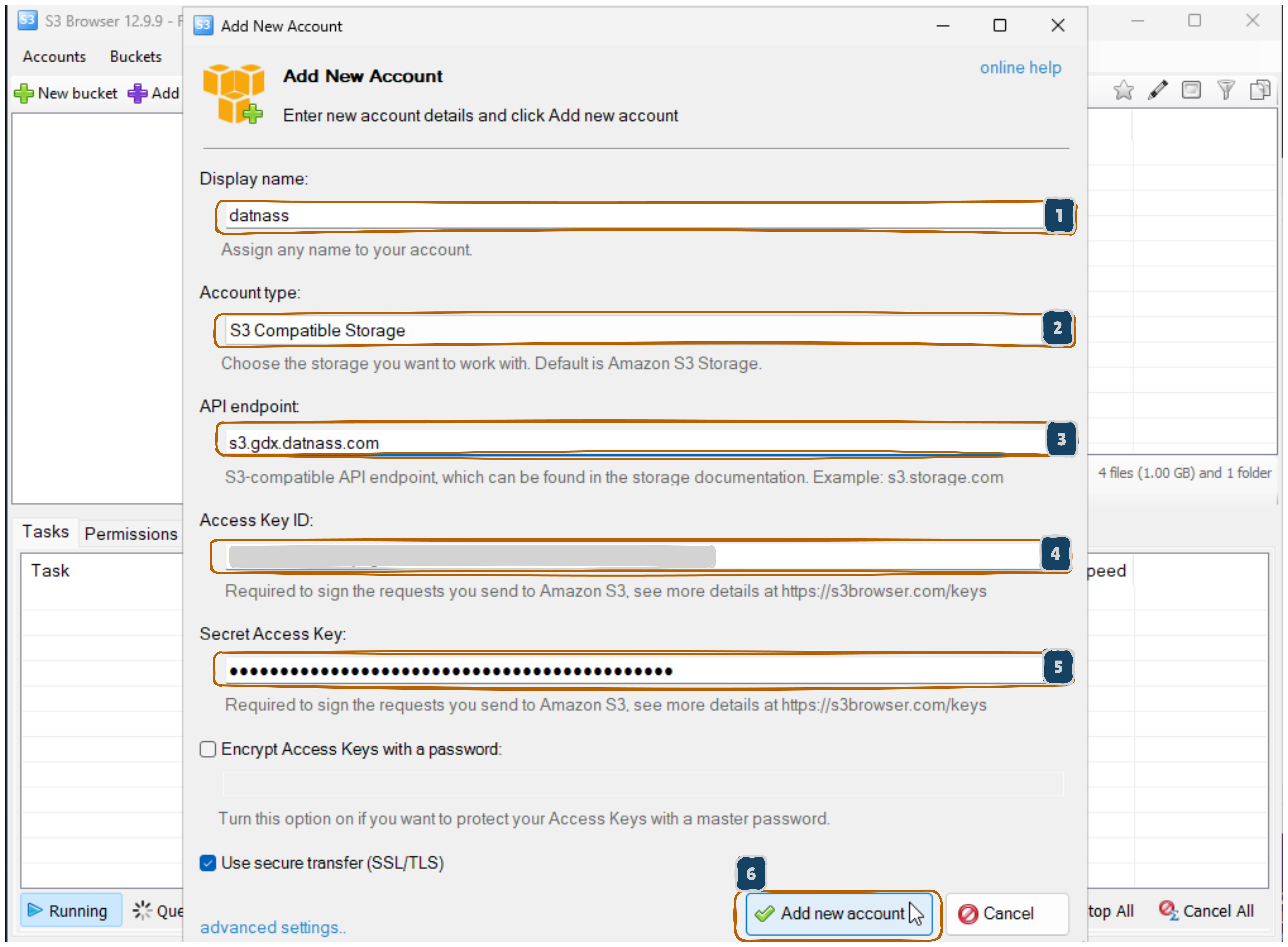
Using S3 Browser
Interface Overview
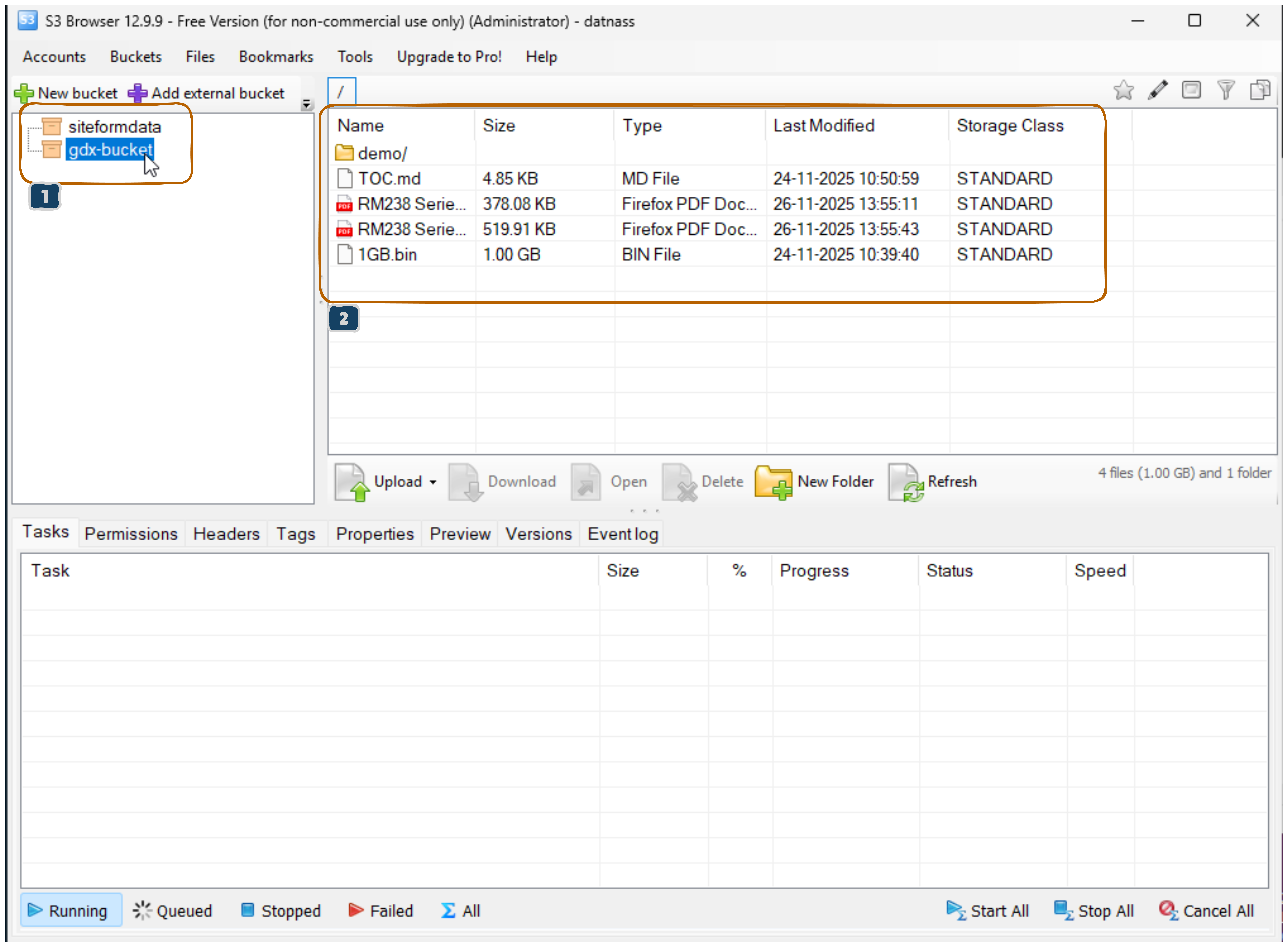
- Left Panel: Lists your buckets and folder structure
- Main Panel: Shows the contents of the selected bucket or folder
- Toolbar: Provides quick access to upload, download, and file management functions
- Status Bar: Displays transfer progress and connection status
Common Tasks
File Management Tips
You can drag and drop files directly between S3 Browser and Windows Explorer for quick transfers. Use right-click context menus for additional options like properties and permissions.Create a New Bucket
- Right-click in the left panel → Create new bucket
- Enter a bucket name and confirm
Upload Files
- Drag files from Windows Explorer and drop them into S3 Browser
- Alternatively, use the Upload button in the toolbar
Download Files
- Select files in S3 Browser
- Drag them to Windows Explorer, or click the Download button
Delete Files or Buckets
- Right-click on the item → Delete
View File Properties
- Right-click on a file → Properties
Support & Resources
For S3 Browser issues, contact their support team. For GDX Cloud issues, use the support options in your console.